🔹 About This Guide
In this guide, I will show you how to install and self-host KoboToolbox on AWS EC2 using an Ubuntu server. We will go through the AWS server setup, Docker installation, KoboToolbox deployment, domain configuration, and the basic configuration needed to run KoboToolbox successfully in the cloud.
🔹 What is Kobo Toolbox?
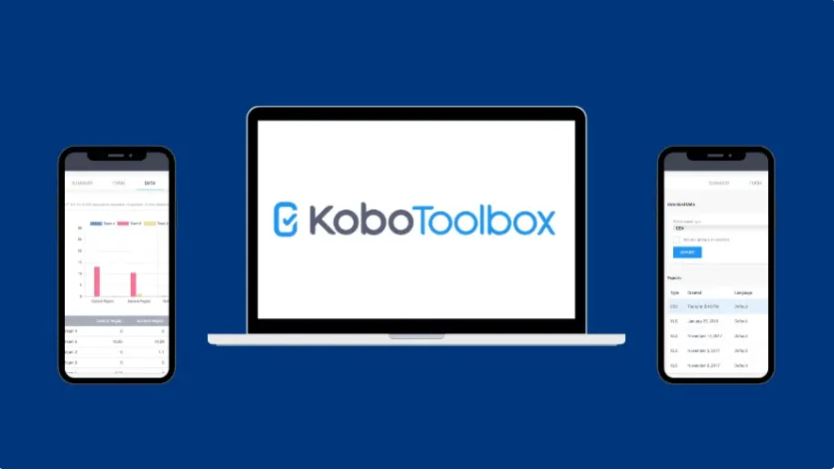
Kobo Toolbox is an open-source data collection platform designed for creating surveys, collecting field data, and analyzing results in real-time. It is widely used by organizations that need reliable and flexible data collection, especially in remote or low-resource environments.
According to Kobo Toolbox, the platform is used by thousands of organizations worldwide to collect millions of survey responses every month, supporting data-driven decision making.
🔹 Who uses Kobo Toolbox?
KoboToolbox is commonly used by:
- NGOs and humanitarian organizations
- Government agencies
- Researchers and universities
- Market research teams
- Field survey teams
Basic Requirements for Installing KoboToolbox on AWS
To install and run KoboToolbox on AWS, you will need the following basic resources:
- An EC2 instance with at least t3.medium (recommended for stable performance)
- 80 GB of storage attached to the instance
- One Elastic IP address for a fixed public IP
- One domain name to access KoboToolbox securely
- An AWS Security Group configured to allow the following ports:
- 22 (SSH) for server access
- 80 (HTTP) for web traffic
- 443 (HTTPS) for secure web access
Step 1 – Update Server
sudo apt update && sudo apt upgrade -yStep 2 – Installs Git, Python 3’s pip, and curl for Data Transfer
sudo apt install -y git python3-pip curlgit: Used to download the Kobo installer.
python3-pip: Python package manager for installing Docker Compose and other Python-based tools.
curl: Used to download the Docker installation script.
Step 3 – Install Docker (latest stable Version)
curl -fsSL https://get.docker.com | sudo shThis installs the latest stable version of Docker, which is recommended for running KoboToolbox.
Step 4 – Check Docker version
sudo docker --version && docker compose versionVerifies that Docker and Docker Compose were installed correctly.
Step 5 – Modify Firewall Settings
sudo ufw disableStep 6 – Clone Kobo installer
git clone https://github.com/kobotoolbox/kobo-install.gitStep 7 – List Files
lsDisplays the files in the current directory to verify that the kobo-install folder has been cloned.
Step 8 – KoBo Install
cd kobo-installNavigates into the kobo-install directory.
Step 9 – Run the installer
sudo python3 run.pyStarts the installation process for KoboToolbox on your server.
Source Link ;
https://kf.kobotoolbox.org/accounts/login/
https://eu.kobotoolbox.org/accounts/login/
https://github.com/kobotoolbox
https://github.com/kobotoolbox/kobo-install
Remark; This installation of Kobo Toolbox on AWS is not a separate or unique installation method. It follows the same Docker-based deployment process used for any server environment. The only difference is that the server is hosted in the cloud (AWS EC2), instead of a local or on-premise machine. Therefore, you can simply follow the official installation instructions without creating or modifying any separate steps for the cloud environment.
Backup Approach Recommendation
In this setup, performing a separate backup of KoboToolbox components (such as databases, Docker containers) can be complex and error-prone. Instead, it is highly recommended to use a full virtual machine (VM) backup approach.
By creating a complete backup of the entire server, all configurations, data, and services are preserved together in a consistent state. This method simplifies the backup and recovery process, reduces the risk of data inconsistency, and ensures that the system can be restored quickly and reliably when needed.