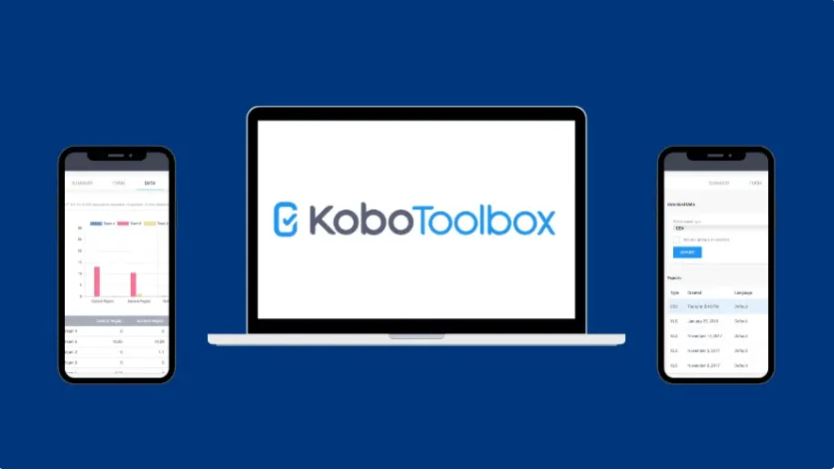
🔹 What is KoboToolbox?
KoboToolbox is an open-source data collection platform designed for creating surveys, collecting field data, and analyzing results in real-time. It is widely used by organizations that need reliable and flexible data collection, especially in remote or low-resource environments.
According to KoboToolbox, the platform is used by thousands of organizations worldwide to collect millions of survey responses every month, supporting data-driven decision making.
🔹 Who uses KoboToolbox?
KoboToolbox is commonly used by:
- NGOs and humanitarian organizations
- Government agencies
- Researchers and universities
- Market research teams
- Field survey teams
Basic Requirements for Installing KoboToolbox on AWS
To install and run KoboToolbox on AWS, you will need the following basic resources:
- An EC2 instance with at least t3.medium (recommended for stable performance)
- 80 GB of storage attached to the instance
- One Elastic IP address for a fixed public IP
- One domain name to access KoboToolbox securely
- An AWS Security Group configured to allow the following ports:
- 22 (SSH) for server access
- 80 (HTTP) for web traffic
- 443 (HTTPS) for secure web access
Step 1 – Update Server
sudo apt update && sudo apt upgrade -yStep 2 – Installs Git, Python 3’s pip, and curl for Data Transfer
sudo apt install -y git python3-pip curlgit: Used to download the Kobo installer.
python3-pip: Python package manager for installing Docker Compose and other Python-based tools.
curl: Used to download the Docker installation script.
Step 3 – Install Docker (latest stable Version)
curl -fsSL https://get.docker.com | sudo shThis installs the latest stable version of Docker, which is recommended for running KoboToolbox.
Step 4 – Check Docker version
sudo docker --version && docker compose versionVerifies that Docker and Docker Compose were installed correctly.
Step 5 – Modify Firewall Settings
sudo ufw disableStep 6 – Clone Kobo installer
git clone https://github.com/kobotoolbox/kobo-install.gitStep 7 – List Files
lsDisplays the files in the current directory to verify that the kobo-install folder has been cloned.
Step 8 – KoBo Install
cd kobo-installNavigates into the kobo-install directory.
Step 9 – Run the installer
sudo python3 run.pyStarts the installation process for KoboToolbox on your server.
Source Link ;
https://kf.kobotoolbox.org/accounts/login/
https://eu.kobotoolbox.org/accounts/login/
https://github.com/kobotoolbox
https://github.com/kobotoolbox/kobo-install
Remark; This installation of Kobo Toolbox on AWS is not a separate or unique installation method. It follows the same Docker-based deployment process used for any server environment. The only difference is that the server is hosted in the cloud (AWS EC2), instead of a local or on-premise machine. Therefore, you can simply follow the official installation instructions without creating or modifying any separate steps for the cloud environment.
Backup Approach Recommendation
In this setup, performing a separate backup of KoboToolbox components (such as databases, Docker containers) can be complex and error-prone. Instead, it is highly recommended to use a full virtual machine (VM) backup approach.
By creating a complete backup of the entire server, all configurations, data, and services are preserved together in a consistent state. This method simplifies the backup and recovery process, reduces the risk of data inconsistency, and ensures that the system can be restored quickly and reliably when needed.